 Coach Recap
Summary of the Article
A client management system for a coaching practice is one place that holds each client's contact details, package, session history, goals, and next follow-up. You can build a working version in an afternoon with a spreadsheet, and the template below shows every field and formula you need. Keep it alive with one next action per client and a short weekly review. When payments, client portals, or note privacy start to slip, that is the signal to move to dedicated coaching software.
- What it must hold: client profile, session history, goals and actions, follow-ups, and payment status.
- Fastest start: a Google Sheets or Excel template, roughly an hour to set up.
- What keeps it useful: a single "next action with a date" per client, reviewed weekly.
- When to upgrade: manual payment tracking, no client portal, or private notes sitting in a shared file.
You started coaching because you coach, not because you love admin. But once you pass three or four clients, the details live in too many places: intake answers in email, notes in a doc, next steps in your head. A client management system fixes that, and you do not need expensive software to build one.
What a Client Management System Must Hold for a Coaching Practice
Most "client management" advice comes from sales teams, and it does not fit a one-person coaching practice. A sales CRM tracks deals moving through a pipeline. Your coaching work tracks something different: a relationship with a person over weeks or months.
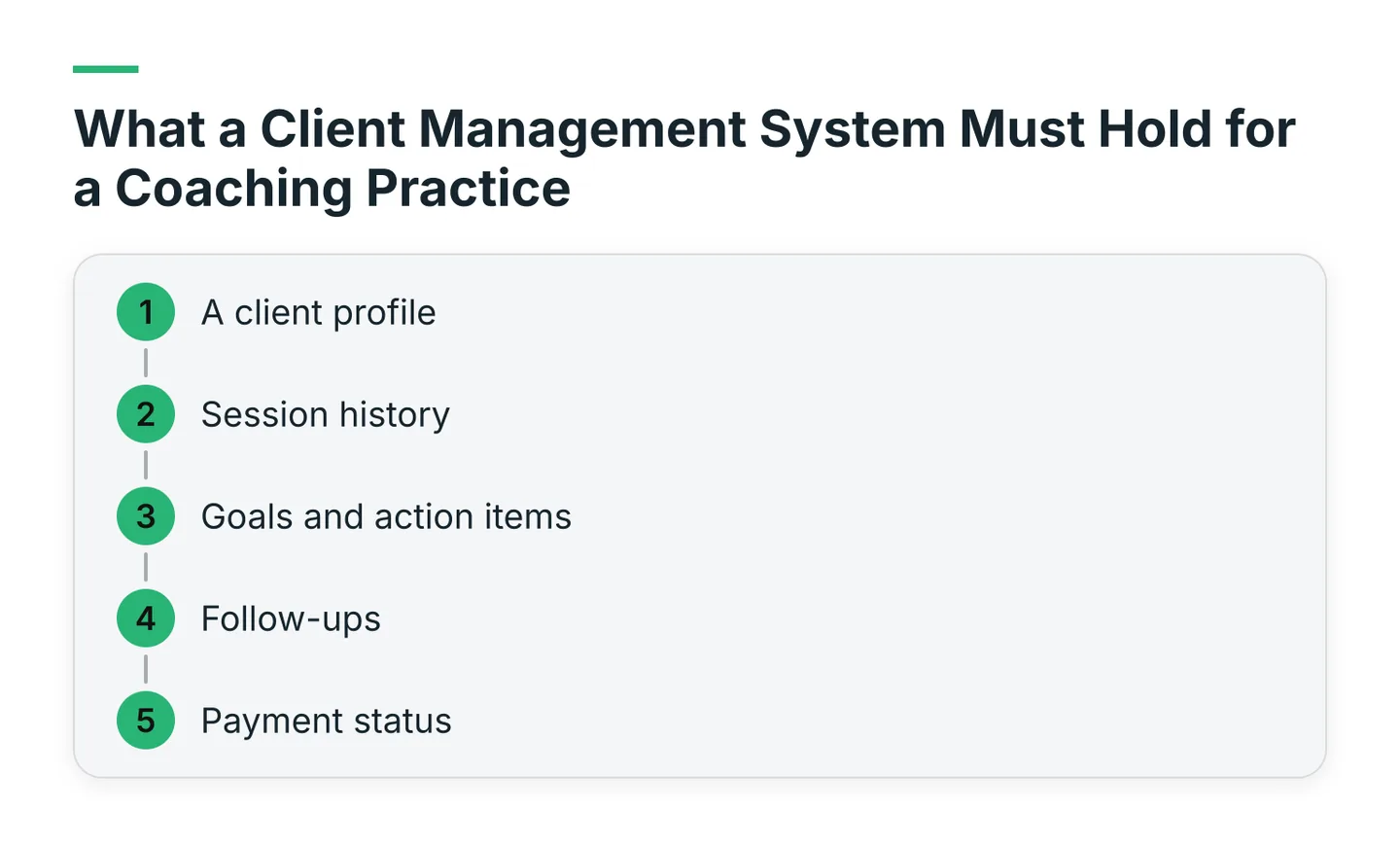
For a coach, the system needs five things:
- A client profile. Contact details, status (lead, active, paused, ended), and the package they bought.
- Session history. The date of every session and a short note on what you covered.
- Goals and action items. What the client is working toward and what they committed to between sessions.
- Follow-ups. One clear next action with a date, per client, so nobody goes quiet for a month.
- Payment status. Which sessions are paid for, and how many are left in the package.
If your current system answers "who is this client, what are we working on, what happened last time, and what happens next," you are covered. Anything beyond that is optional at the start.
Before You Build: What You Already Have
Gather what exists before you design anything new. For most coaches that means three piles:
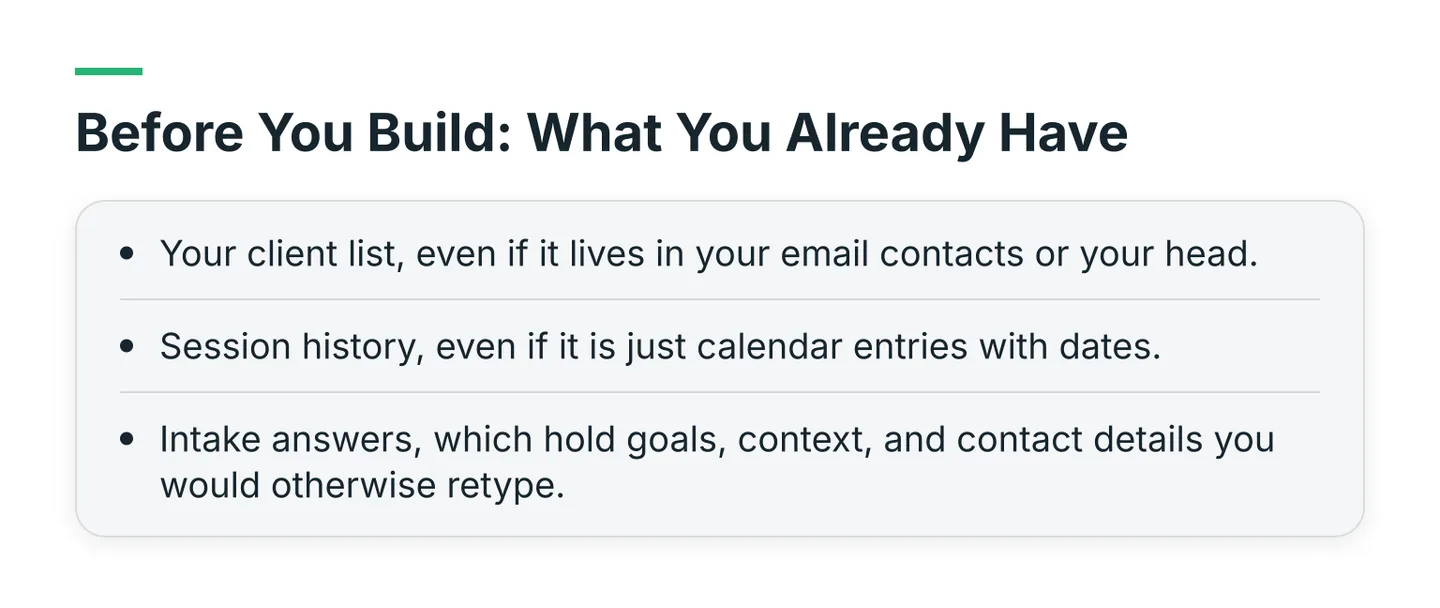
- Your client list, even if it lives in your email contacts or your head.
- Session history, even if it is just calendar entries with dates.
- Intake answers, which hold goals, context, and contact details you would otherwise retype.
If your intake questions are thin, fix that first. A good intake form feeds your client profile directly, and you can borrow a structure from our coaching intake form template.
One more decision before you build: decide your client statuses now. Lead, active, paused, and ended covers almost every solo practice. Changing statuses later is annoying; picking them now takes two minutes.
The Four Steps at a Glance
The build takes about an hour for the setup and as long as your history takes to type in. The steps below run in the order you will actually do them.
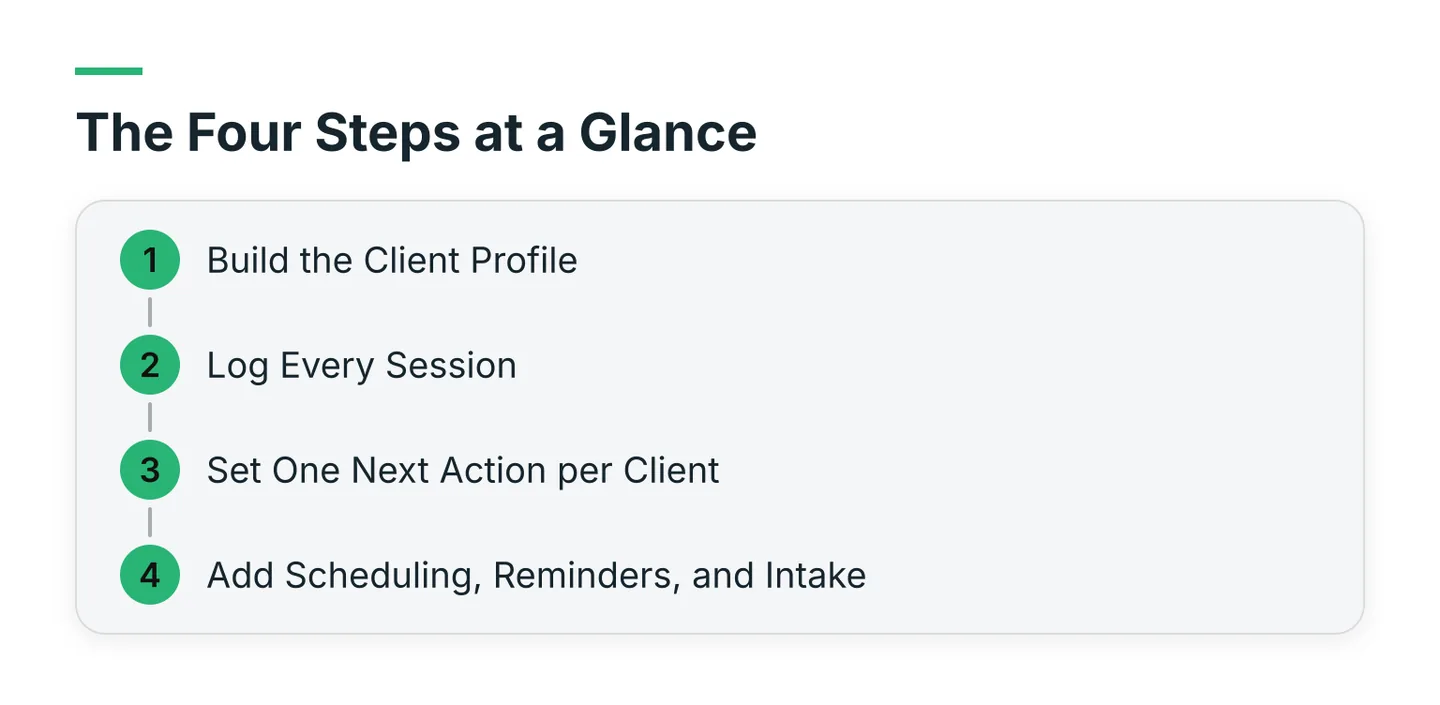
Step 1: Build the Client Profile
Open a new spreadsheet and create a tab called Clients. Put one row per client, one column per field. Start with these columns:
- Name
- Phone
- Status (lead, active, paused, ended)
- Package (for example, "6-session package" or "monthly")
- Sessions purchased (a number, blank for monthly clients)
- Start date
- Main goal (one line, in the client's words if possible)
That is enough. You can add coaching niche, referral source, or billing details later. Keep each field in its own column so you can filter and sort. If you track coaching hours toward an ICF credential, the start date column already gives you the anchor for that log; our ICF hours tracker explains what else the log needs.
Step 2: Log Every Session
Create a second tab called Sessions. One row per session:
- Client name (match the spelling on the Clients tab exactly)
- Date
- What we covered (two or three lines)
- Agreed action (what the client said they would do)
- Duration (in hours, if you log coaching hours)
The two-line rule keeps this sustainable: what did you cover, and what did you agree. A fuller structure, with examples, is in our session notes template, which works in a spreadsheet or in dedicated software.
The date in this tab is also your record for ICF experience requirements. ICF asks for 100 hours with at least 8 clients for the ACC and 500 hours with at least 25 clients for the PCC, and it expects you to keep organized records with client consent, per its credentialing experience requirements.
Step 3: Set One Next Action per Client
Add a Next action column and a Next action date column to the Clients tab. One action per client, with a date. Not a to-do list per client. One line, such as "Send reflection questions before session 4, by May 12."
The single action matters. When every client has five open items, you stop looking at the list. When each client has exactly one dated action, a glance tells you who needs you today.
Step 4: Add Scheduling, Reminders, and Intake
A spreadsheet does not send reminders or host intake forms, so keep this layer lightweight:
- Scheduling: keep your booking in Google Calendar or Outlook. Add a "next session date" column to the Clients tab so the spreadsheet reflects what the calendar knows.
- Reminders: set one recurring calendar event for your weekly review (below). Client session reminders can live in your calendar invites.
- Intake: use a form tool that exports to a spreadsheet, or send your intake questions as a doc and paste answers into the profile. The goal is one client row with everything in it.
This layer is where DIY systems feel the strain first. That is normal, and the "When the Template Breaks" section below covers what to do about it.
Free Client Management System Template (Google Sheets or Excel)
Copy this structure into Google Sheets or Excel. It is your client management system template, with one tab per part of the system. The column letters below assume the Clients tab starts in column A, so the formulas work as written.
Clients tab:
| Column | Field | How it is filled | Example |
|---|---|---|---|
| A | Name | Typed | Maya R. |
| B | Typed | [email protected] | |
| C | Status | Dropdown: lead, active, paused, ended | Active |
| D | Package | Dropdown | 6-session package |
| E | Sessions purchased | Typed number, blank for monthly clients | 6 |
| F | Sessions used | Formula | =COUNTIF(Sessions!A:A,A2) |
| G | Sessions left | Formula | =E2-F2 |
| H | Start date | Date | 2026-03-02 |
| I | Main goal | Typed | Move from manager to director role |
| J | Next session | Date | 2026-05-20 |
| K | Next action | Typed | Send reflection questions |
| L | Next action date | Date | 2026-05-12 |
| M | Last contact | Date | 2026-05-06 |
| N | Days since contact | Formula | =TODAY()-M2 |
| O | Payment status | Typed or dropdown | Paid through session 4 |
Sessions tab: Client name, Date, What we covered, Agreed action, Duration. The client name must sit in column A, because the formulas below read it from there.
Set up the Status and Package columns as dropdowns so values stay consistent. In Google Sheets, select the column, then use Data > Data validation to add the list; Google's guide to in-cell dropdown lists walks through it step by step.
Three formulas do the heavy lifting. In both Google Sheets and Excel:
- Sessions used (F2):
=COUNTIF(Sessions!A:A,A2)counts the rows on the Sessions tab whose client name in column A matches the name in A2. Copy it down for every client row, and your session counts update themselves. - Sessions left (G2):
=E2-F2takes the sessions purchased in E2 and subtracts the sessions used in F2. For monthly clients with a blank E column, leave G blank rather than letting the formula show a negative number. - Days since contact (N2):
=TODAY()-M2subtracts the Last contact date in M2 from today's date.TODAY()returns the current date each time the sheet recalculates, per Google's function reference.
Overdue flag: select the Days since contact column (N), then Format > Conditional formatting, and color cells red when the value is greater than 21. Red rows are your follow-up list for the week.
Fill in one real client row and one real session row before you invite the rest of your history in. An example row you can see beats ten blank columns.
The Weekly Review That Keeps It Honest
A template only works if it reflects reality, and the habit that makes that true takes about 15 minutes a week:
- Open the Clients tab and sort by Days since contact. Anyone over 21 days gets a message today.
- Check every Next action date. Anything overdue gets rescheduled or dropped, out loud, in your own head.
- After each session, log the two lines while it is fresh. Batch these if sessions cluster on one day.
- Update session counts and payment status once a week, not after every session.
- Archive ended clients by changing their status to "ended" rather than deleting them. Former clients are future referrals, and their history may matter later.
Pick a fixed time, like Friday at 4 p.m. A review that happens whenever you remember is a review that stops happening.
When the Template Breaks
Spreadsheets scale fine to roughly 10 to 15 active clients. Past that, or as your practice adds moving parts, watch for these signals:
- Payment tracking takes real work. If you reconcile Stripe payments against a column by hand, you are doing a job the software should do.
- Clients ask for access. Sharing goals or resources means emailing files, because a spreadsheet is not a client portal.
- Notes are getting sensitive. Session notes with personal detail sitting in a cloud file deserve more protection than a spreadsheet gives you.
- You rebuild the same sheet twice. Duplicated tabs with different numbers mean the system has forked.
- Reminders depend on your memory. If a client can book, reschedule, or get a reminder only when you act manually, you have become the automation.
Two or three of these at once is the honest line where DIY stops being frugal and starts being a bottleneck. That is when to look at dedicated coaching software, starting with what a purpose-built coaching client management setup covers that a spreadsheet cannot.
If You Would Rather Not Build: Choosing Coaching Software
Skipping the DIY route is a legitimate choice, not a shortcut. If you shop for a client management system for coaches, hold every option against the same five checks:
- Built for a one-person practice, not a sales team.
- Covers the coaching record: sessions, goals, action items, packages.
- Starts free or cheap and does not punish you as clients grow.
- Setup you can finish in an afternoon, with your data imported.
- Handles follow-ups and client history without manual wrangling.
Coach Recap is built around exactly this record. It keeps client profiles with session history, goals, notes, and action items in one place, syncs scheduling and booking with Google Calendar and Outlook, and tracks session packs, subscriptions, and payments through Stripe.
If you would rather compare options yourself first, our comparison of the best CRM for coaches prices eight tools at the same 12-client practice so you can see the real cost side by side, and the pricing page shows what Coach Recap costs as your practice changes.
Whichever route you take, start this week with one client row and one session row. A small system you maintain beats a detailed one you abandon.
Ready to skip the spreadsheet? Sign up for a free Coach Recap account and start using the software today, no credit card required.
Common Questions
What is a client management system for a coach?
It is one organized place for each client's contact details, status, package, session history, goals, action items, and payment status. For a solo coach it replaces the scatter of email, calendar, notes docs, and memory.
Can I run a coaching practice on a spreadsheet?
Yes, up to roughly 10 to 15 active clients, as long as you keep the weekly review habit. The template above covers profiles, sessions, follow-ups, and payment status.
When should I move from a spreadsheet to coaching software?
When payment tracking gets manual, clients ask for portal access, session notes need privacy protection, or reminders depend entirely on you. Two or more of those at once is the practical signal.
What should a client profile include?
At minimum: name, email, status, package, sessions purchased, start date, and main goal. Add fields only when you will actually use them.